
Support
Tags, roster filters and Team brief
Use your own tags, the roster Filter and Sort bar, today's capacity and the Team brief to see which athletes need you first, every morning.
How fresh is it?
The roster and Team brief read a daily snapshot that refreshes when each athlete syncs. An athlete who has not synced shows Last sync and an older snapshot until they do.
Recovery, a week at a time
The Recovery tab shows HRV, sleep, REM, readiness and resting heart rate for every athlete who shares recovery, coloured against their own normal range. Page back a week at a time, and sort by most days worse.
Steps
1. Tag your athletes
Add tags when you invite, or later with the tag button on an athlete card or their page: Squad A, Marathon, One-to-one, Trial. Tags are yours alone and the athlete never sees them. Rename or remove a tag everywhere at once from the tag list.
2. Filter and sort the roster
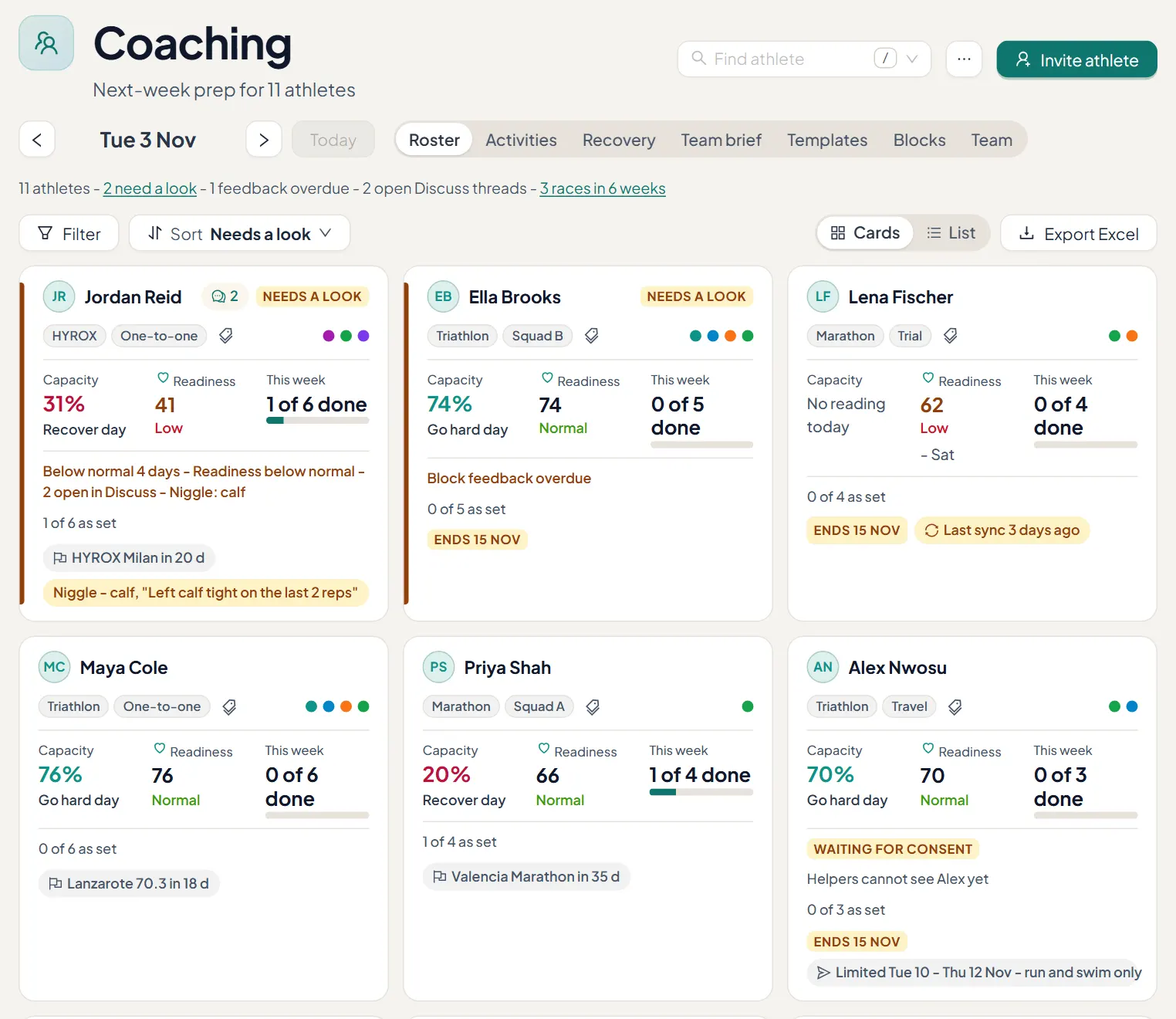
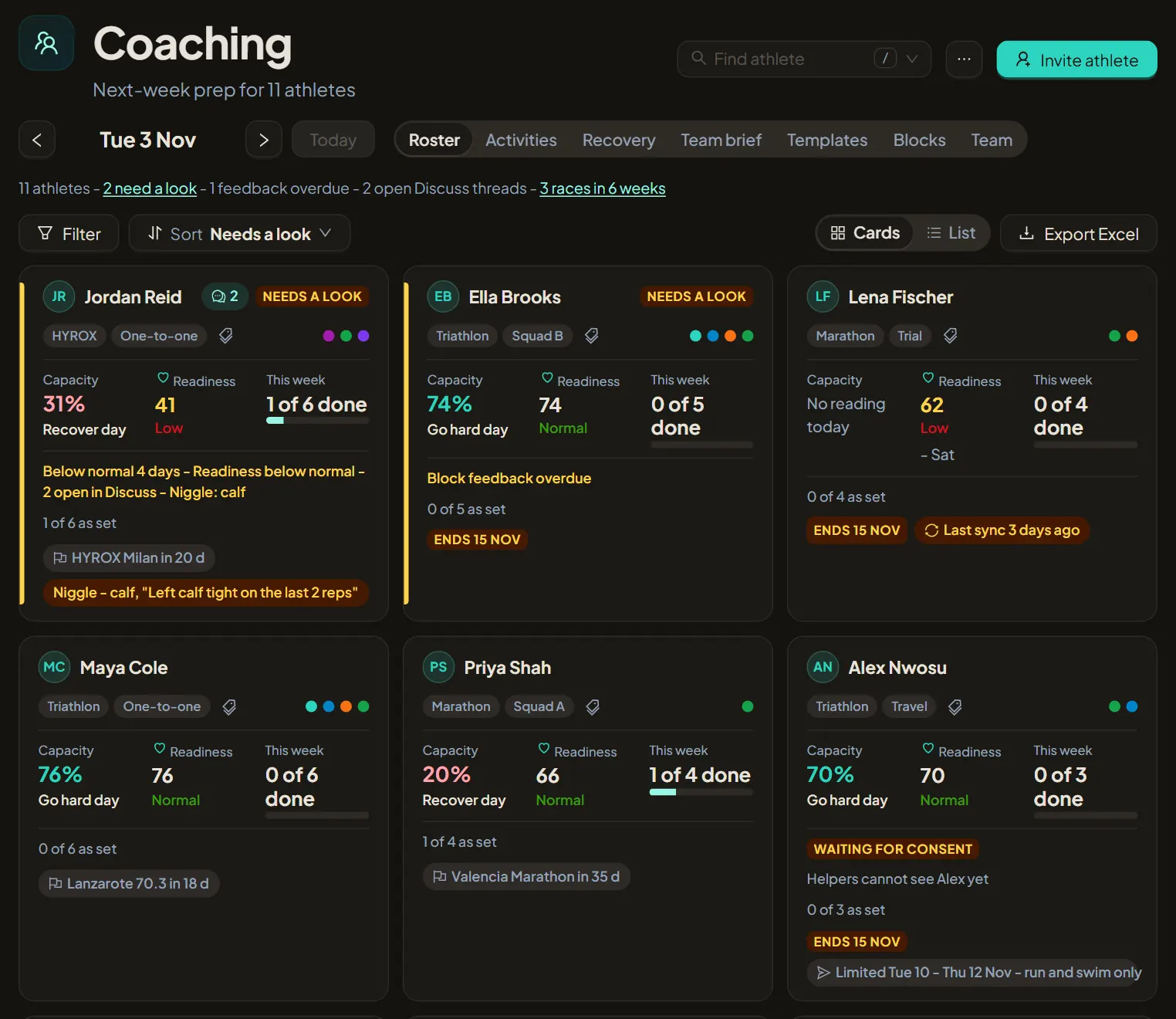
Filter by status (needs a look), programme (ending soon or no programme) and tag. Sort by needs a look, next race, name or tag. Switch between Cards and List, and Export Excel when you want the table elsewhere.
3. Read today's capacity
Capacity is the same number the athlete sees on Home: their readiness, eased down when load is running hot or form is very tired. It reads as a go hard day, a steady day or a recover day, and only shows when the athlete shares recovery.
4. Check the Team brief
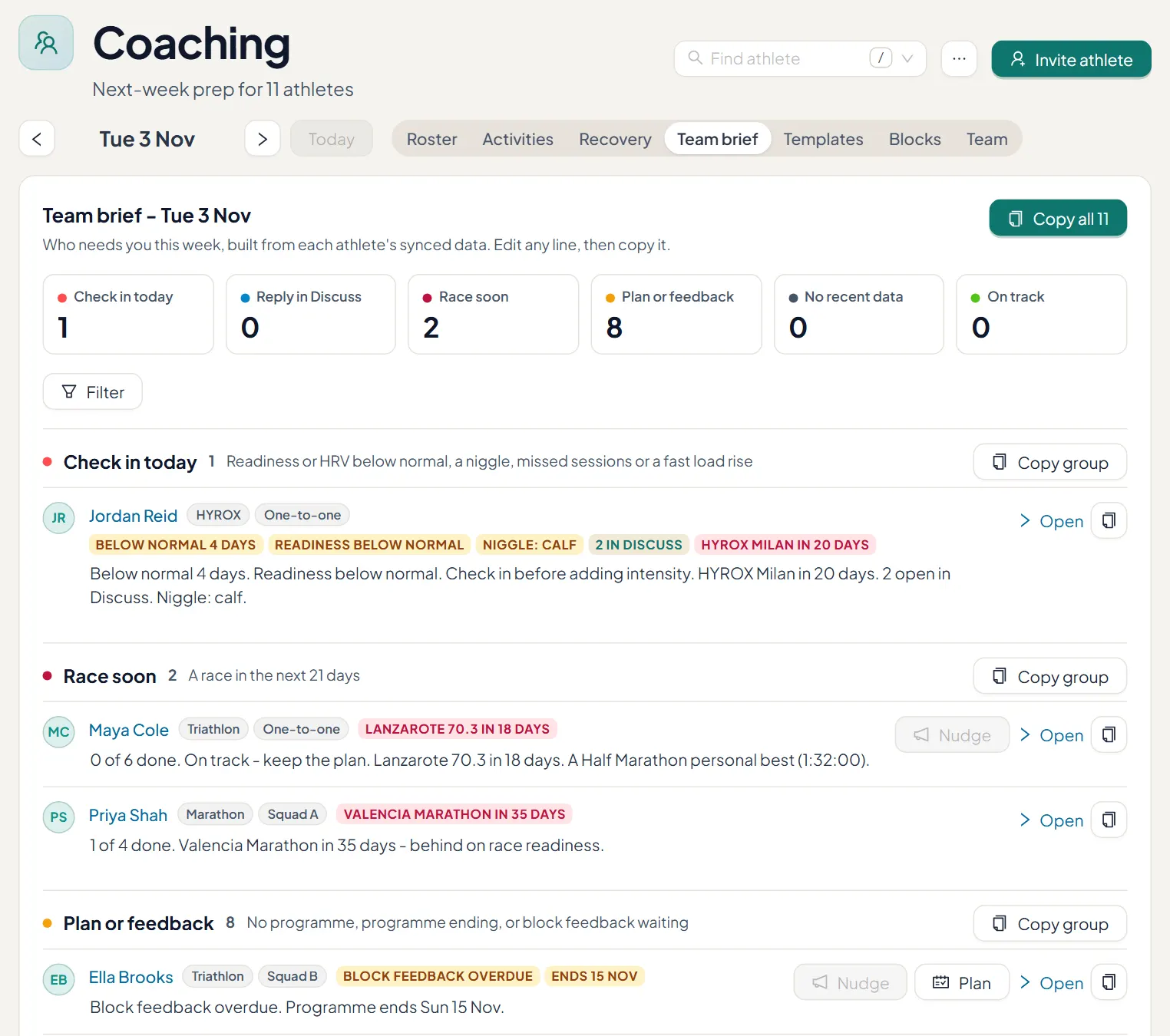
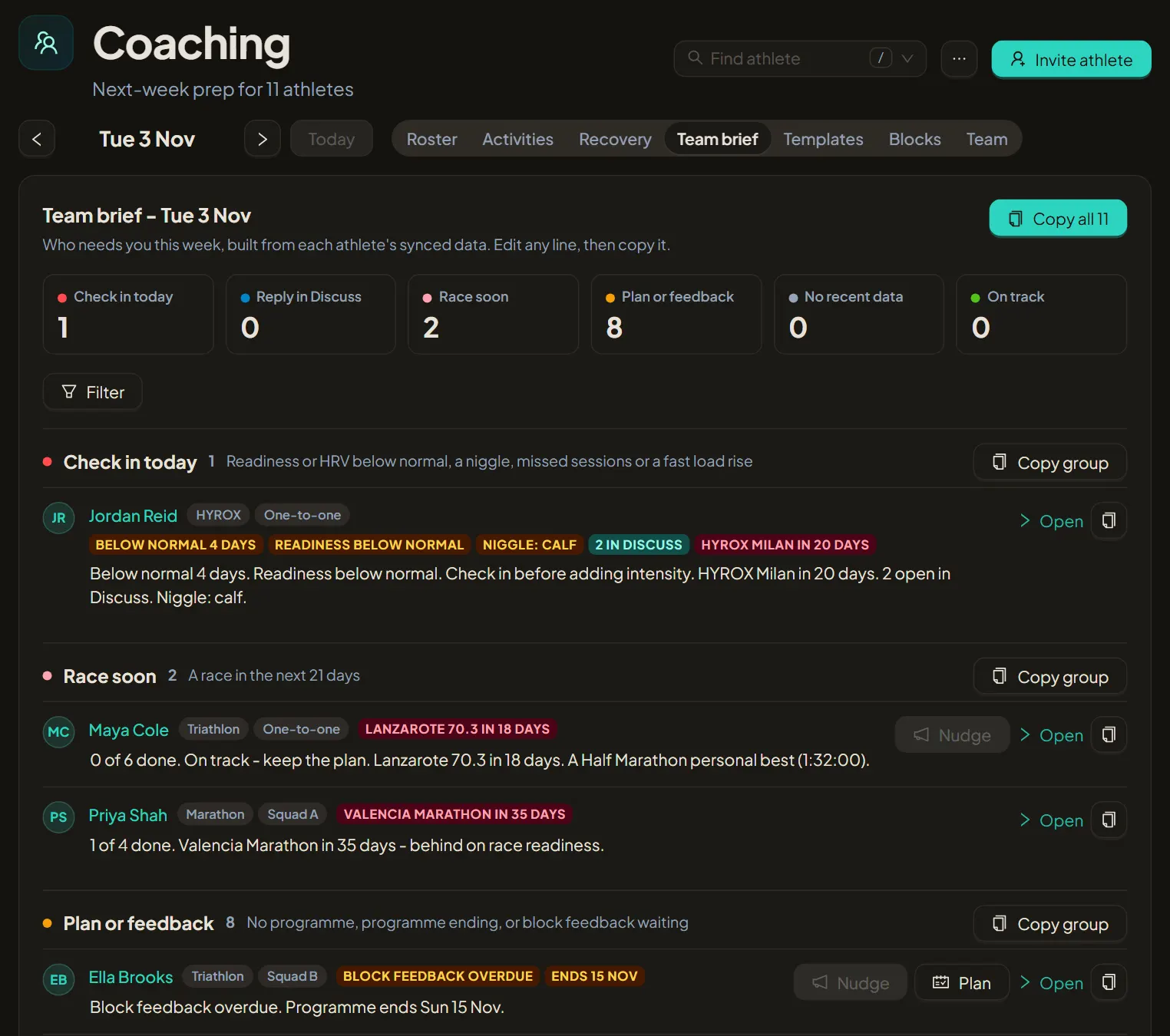
Team brief writes one line per athlete and groups them: Check in today, Reply in Discuss, Race soon, Plan or feedback, No recent data and On track. Click a tile to show one group. Edit a line, then copy it, copy a group or Copy all.
5. Find any athlete fast
Press / on any coaching page, or use Find athlete, and type a name or a tag.