
Support
Split View and drag to move
Move and copy sessions by dragging on an athlete's calendar, and use Split View to plan next to another athlete, a later week or a block, side by side or day by day.
Shift and hide
Shift moves selected days, a range, or everything from a date by days or weeks, with a preview. Hide keeps a session, comment or week from the athlete until you show it.
Steps
1. Read the calendar
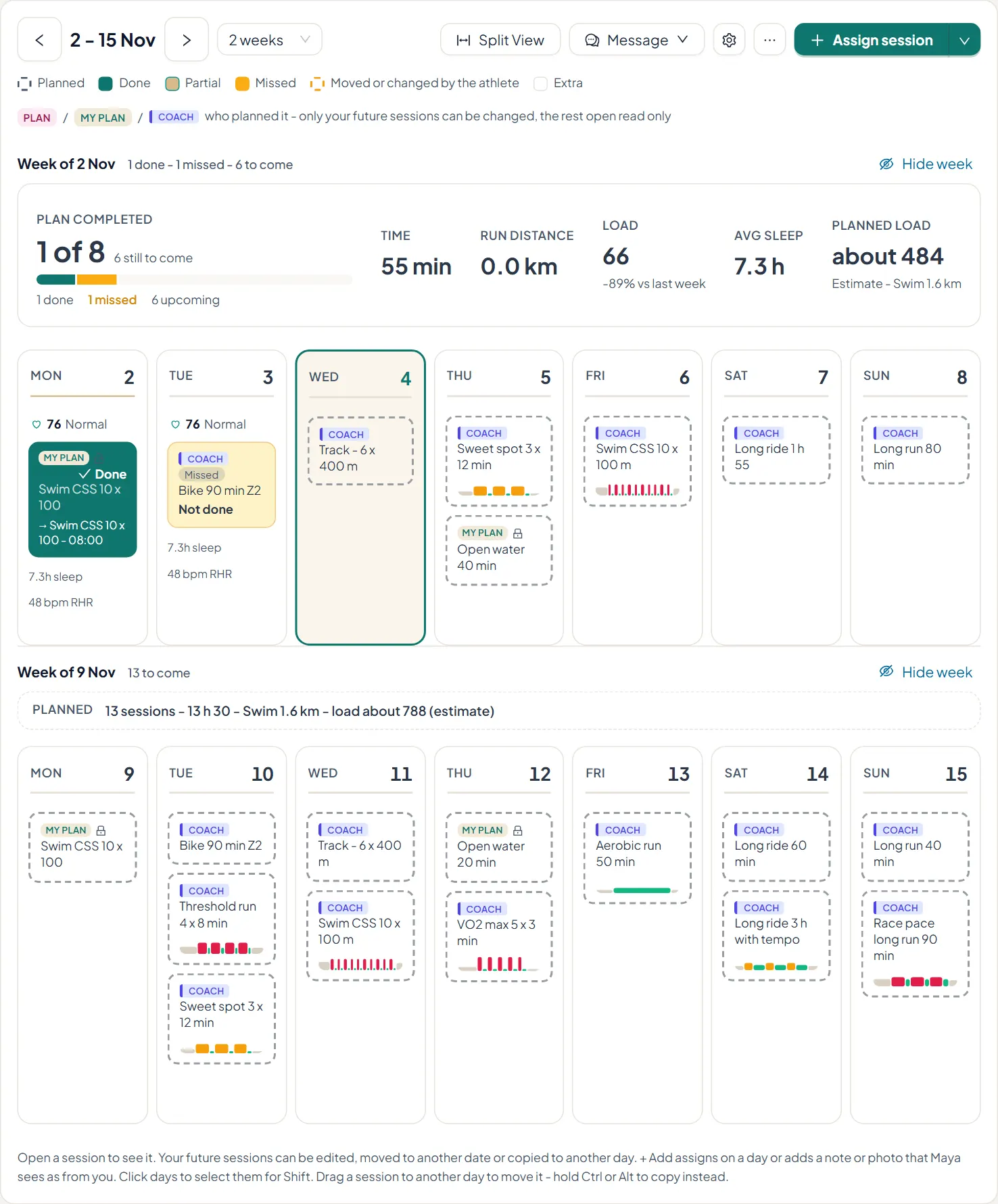
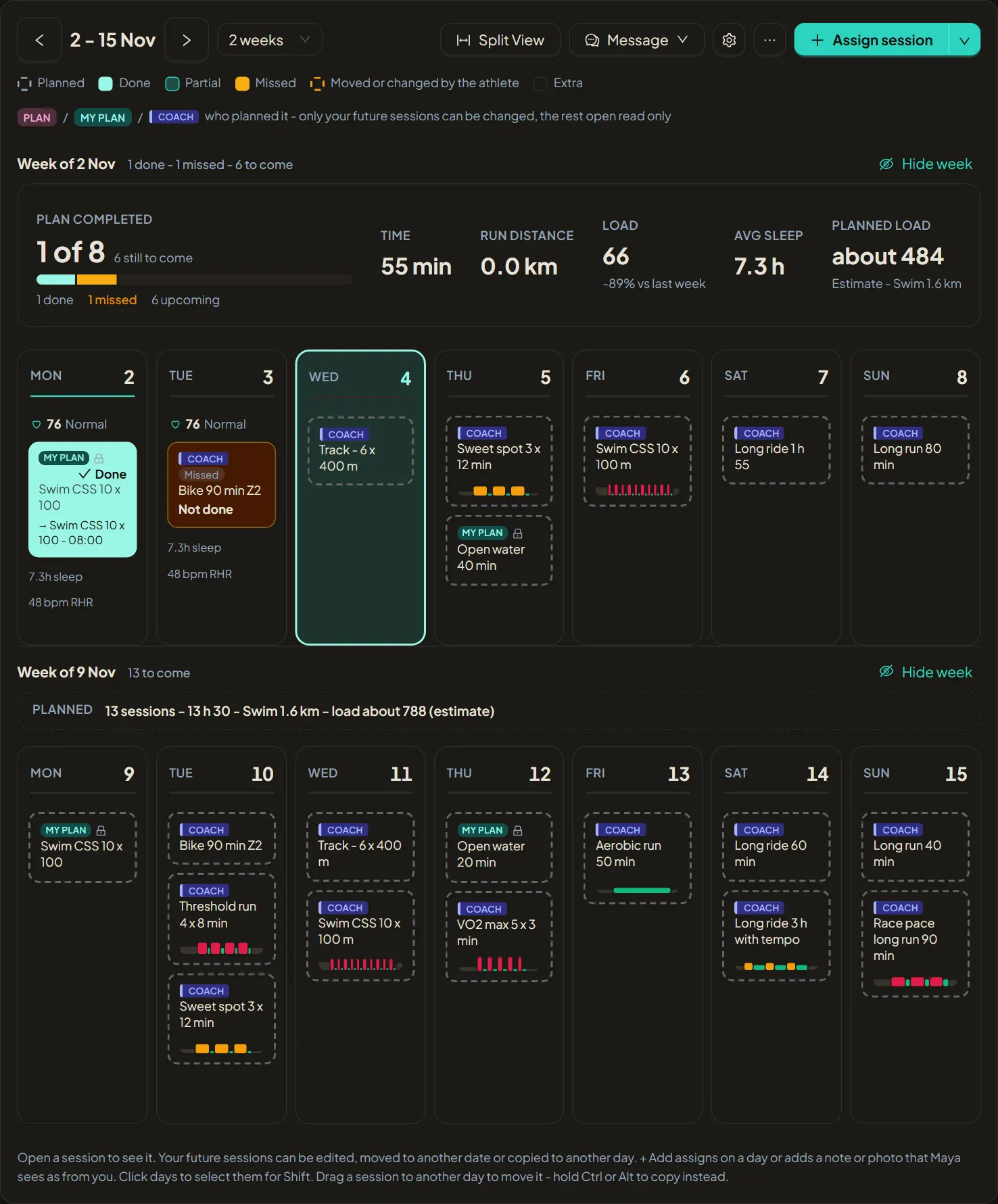
Open an athlete for one to four weeks with Done, Partial, Missed and Moved on every session, week totals, readiness under each day when they share recovery, and a small workout profile on each structured session. COACH marks your sessions, MY PLAN the athlete's own.
2. Drag to move, Ctrl or Alt to copy
Drag one of your future sessions to another day to move it. Hold Ctrl or Alt while you drag to copy it instead. The watch follows when the athlete allows it, and Undo puts it back.
3. Open Split View
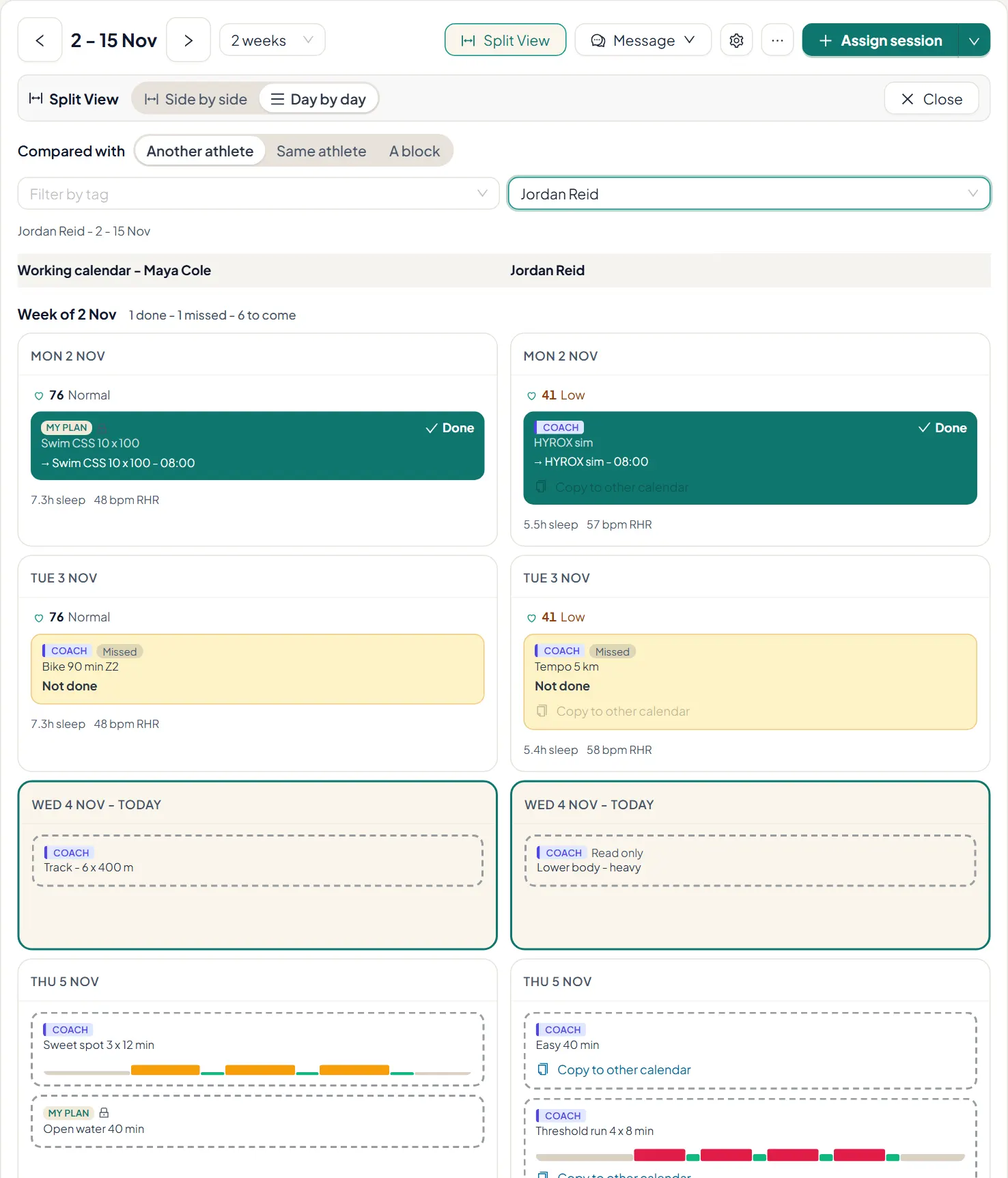
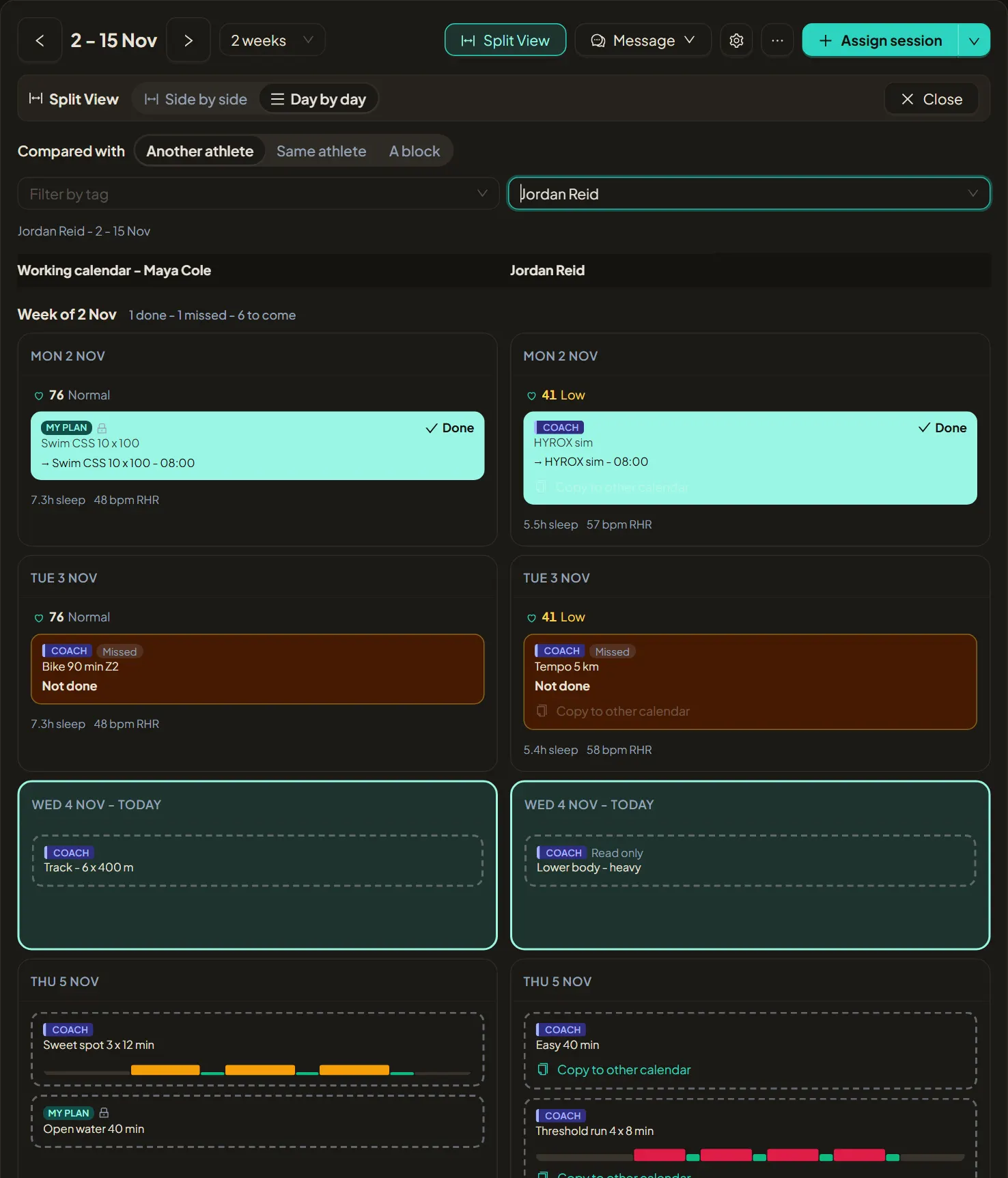
Open Split View and choose what to compare with: another athlete, the same athlete in a later or earlier week, or a block from your library. Filter the athlete list by tag.
4. Pick a layout
Side by side shows two full week grids. Day by day lines the same day of both calendars up in one row, which is easiest on a narrow screen.
5. Copy across
Use Copy to other calendar on a session, or copy a whole week in either direction. Copies land as your sessions on that athlete, with an Undo. Sessions on days already past are left out.