Add your plan to Google Calendar
Optional. On Calendar, connect Google Calendar so upcoming planned sessions, races, and logged activities appear on your phone in a DataFrame.fit calendar. Sign-In never grants Calendar access on its own.
Optional Google Calendar sync on DataFrame.fit. Connect on Calendar to write upcoming planned sessions, races, and logged activities to a DataFrame.fit calendar on your phone. Stop anytime.
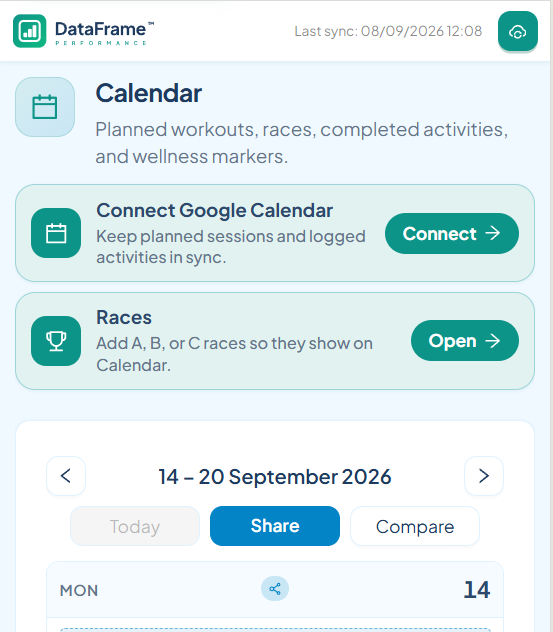
Connect on Calendar
Open Calendar and tap Connect. Google asks for permission to create a DataFrame.fit calendar. Use the same Google account you signed in with.
What we write
Upcoming planned sessions and races are all-day events for about the next four weeks. Logged activities from the last four weeks are timed events. Notes use labels such as Distance, Time, Pace, Speed, HR, Power, and Load, plus a link back to DataFrame.fit.
We write only onto that DataFrame.fit calendar. We do not read your meetings or other calendars. History from before you opted in is not dumped.
Keep it in sync
Change the plan or a race in DataFrame and those Google events update. After a Garmin activity syncs, we write a timed event or update the matching planned event.
Stop anytime
Tap Synced with Google Calendar on Calendar. That revokes access and deletes the DataFrame.fit calendar. Other Google calendars are left as they are.
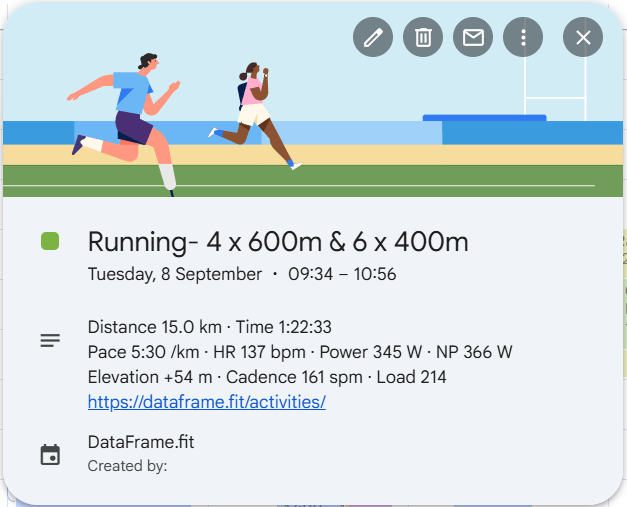
How-to: add sessions to Google Calendar
Like what you see?
DataFrame.fit is free. Sign in with Google, link Garmin Connect, and use the same how-tos on your own training.
Continue with Google - See how DataFrame works
More about DataFrame.fit
- Home
- About
- Support
- How it works
- Screens
- Common questions
- vs Garmin
- vs TrainingPeaks
- Garmin analytics
- All sports
- Privacy
- Terms
- Sign in
- llms.txt
© 2026 DataFrame™. All rights reserved.
This project is currently fully supported by Scope (www.scope.mt).
DataFrame™ is a non-commercial personal project. It is not affiliated with, endorsed by, or connected to Garmin, TrainingPeaks, Peaksware, or other fitness brands.