DataFrame MCP server
Connect Claude, Cursor, GPT-4, Gemini, Grok, DeepSeek, or another assistant to your training. The assistant opens DataFrame so you can sign in and choose what it may do, then you return to the chat. Do not ask the athlete to paste an access token into chat.
Add DataFrame as an MCP server for Claude, Cursor, GPT-4, Gemini, Grok, DeepSeek, or another AI assistant. Sign in on DataFrame, choose what it may view or change, then return to the chat.
Configuration
{
  "mcpServers": {
    "DataFrame.fit": {
      "url": "https://dataframe.fit/api/mcp"
    }
  }
}
Server URL
https://dataframe.fit/api/mcp
Plain-text notes for assistants: https://dataframe.fit/mcp.md
How to connect
Use the configuration above, or add a remote MCP server with that URL in Claude, Cursor, GPT-4, Gemini, Grok, DeepSeek, or another assistant.
- Sign in to DataFrame with Google, and link Garmin if you have not already.
- In the assistant, add the remote MCP server URL https://dataframe.fit/api/mcp.
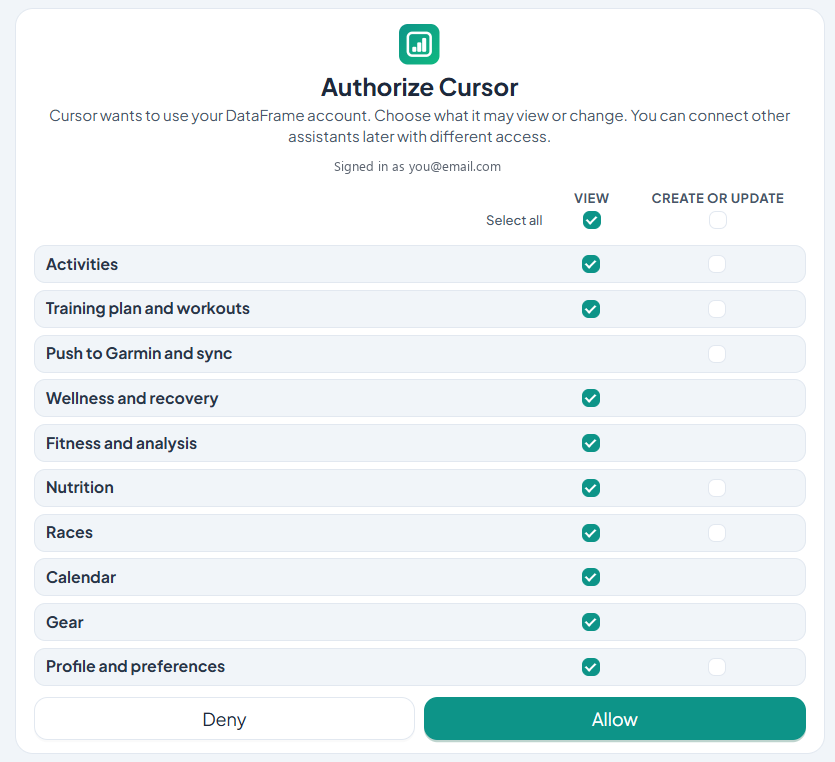
- Your browser opens DataFrame. Sign in if needed, tick what that assistant may view or change, and allow it. Viewing starts on. Changes, and push to Garmin, stay off until you tick them.
- Return to the chat and ask about a session, recovery, the plan, or nutrition.
- Manage or revoke each assistant under Settings, Connections, Connected AI agents.
What you can allow
Activities, training plan, nutrition, wellness, races, calendar, gear, and preferences. Viewing starts on. Changes, and push to Garmin, stay off until you tick them. Agents never get admin access.
You can connect more than one assistant. Each one has its own access. Revoke one under Settings without affecting the others.

mcp.md (plain text for assistants) · Step-by-step guide · What each permission does
More about DataFrame.fit
- Home
- About
- Support
- How it works
- Screens
- Google Calendar
- Common questions
- vs Garmin
- vs TrainingPeaks
- Garmin analytics
- All sports
- Privacy
- Terms
- Sign in
- llms.txt
© 2026 DataFrame™. All rights reserved.
This project is currently fully supported by Scope (www.scope.mt).
DataFrame™ is a non-commercial personal project. It is not affiliated with, endorsed by, or connected to Garmin, TrainingPeaks, Peaksware, or other fitness brands.