Connect ChatGPT to DataFrame
ChatGPT can use your DataFrame training data through a custom MCP app. You enable Developer mode, add the DataFrame server URL, sign in on DataFrame, and choose what ChatGPT may view or change.
Turn on ChatGPT Developer mode, create an MCP app at https://dataframe.fit/api/mcp, sign in on DataFrame, choose permissions, then ask from a normal chat.
1. Turn on Developer mode
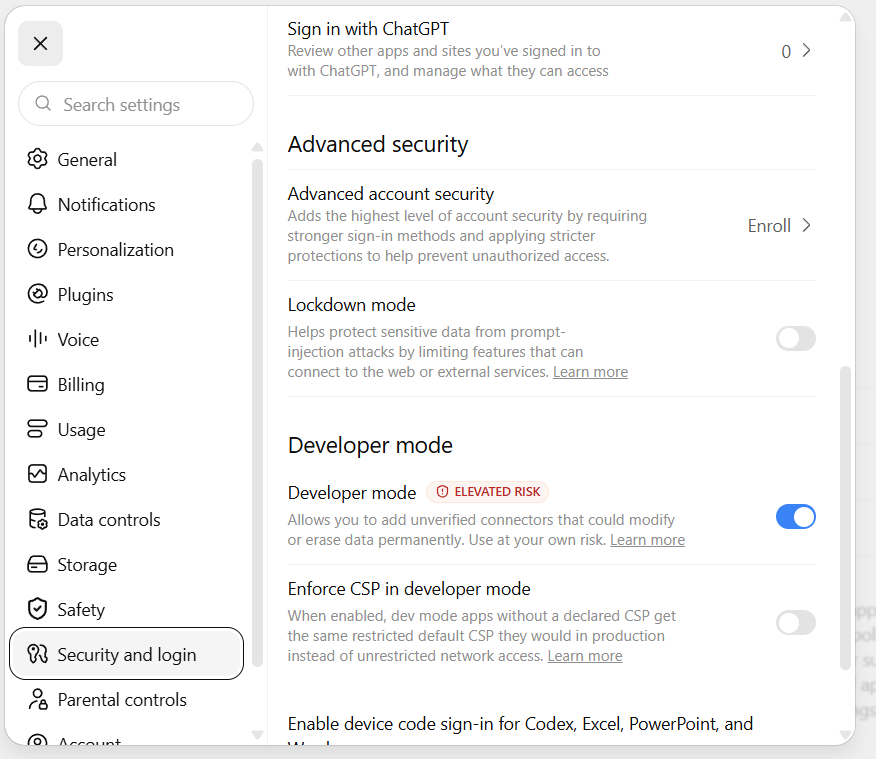
In ChatGPT, open Settings → Security and login. Switch Developer mode on. OpenAI marks this as elevated risk because custom connectors can change data.
2. Create an MCP app
Open Plugins (https://chatgpt.com/plugins). Use + → Create app → Create MCP App.
3. Point ChatGPT at DataFrame
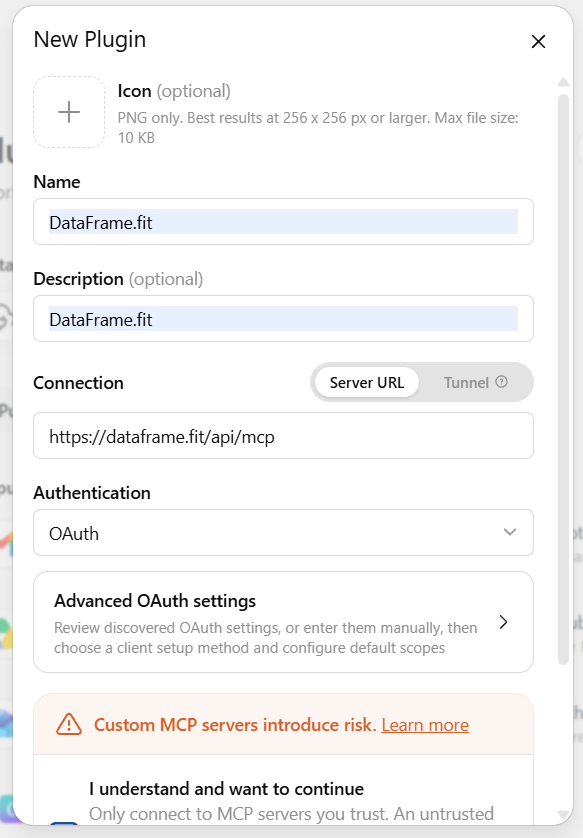
Name: DataFrame.fit. Connection: Server URL. URL: https://dataframe.fit/api/mcp. Authentication: OAuth. Confirm the risk checkbox, then Create.
4. Sign in and choose access
Choose Sign in with DataFrame.fit. Sign in with Google if needed. Tick what ChatGPT may view or change, then Allow. Do not paste an access token into ChatGPT.
5. Ask from a normal chat
Start a ChatGPT chat and ask about a session, recovery, the plan, or nutrition. For interval pace, ask it to use the quality block, not only the full-session average.
Full guide with screenshots · What each permission does
More about DataFrame.fit
- Home
- About
- Support
- How it works
- Screens
- Google Calendar
- AI / MCP Server
- Common questions
- vs Garmin
- vs Polar
- vs TrainingPeaks
- Garmin analytics
- All sports
- Privacy
- Terms
- Sign in
- llms.txt
© 2026 DataFrame™. All rights reserved.
This project is currently fully supported by Scope (www.scope.mt).
DataFrame™ is a non-commercial personal project. It is not affiliated with, endorsed by, or connected to Garmin, TrainingPeaks, Peaksware, or other fitness brands.