Connect ChatGPT to DataFrame
Support / Connect ChatGPT to DataFrame
Turn on ChatGPT Developer mode, create an MCP app pointed at https://dataframe.fit/api/mcp, sign in on DataFrame, choose permissions, then ask about your training from a normal chat.
Full guide with screenshots
See the ChatGPT page at /mcp/chatgpt for screenshots of every step.
Safety
Do not paste an access token into ChatGPT. Developer mode is required for custom MCP apps and is marked elevated risk by OpenAI - only connect servers you trust.
Steps
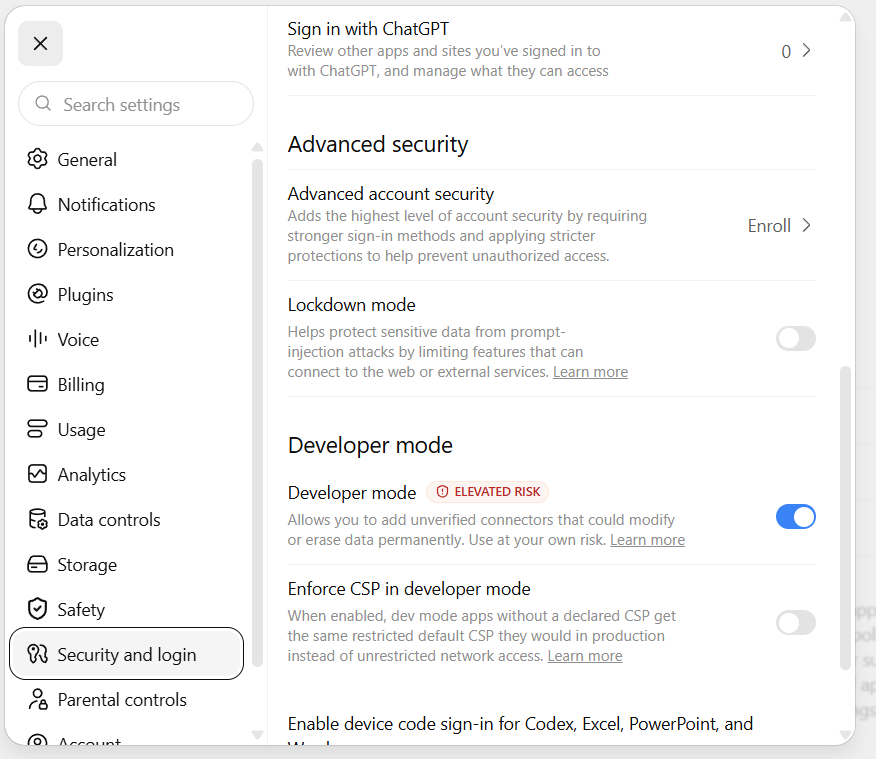
- Turn on Developer mode - In ChatGPT, open Settings → Security and login. Switch Developer mode on.
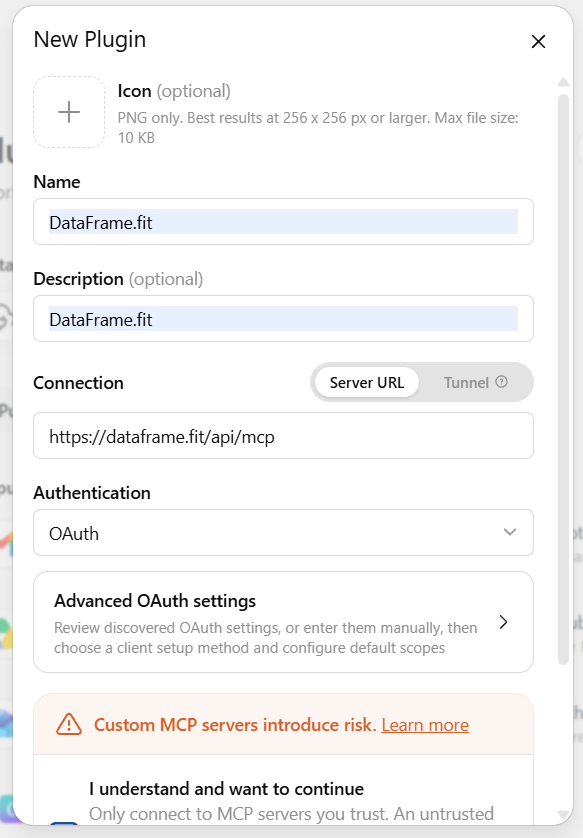
- Create an MCP app - Open Plugins (https://chatgpt.com/plugins). Use + → Create app → Create MCP App.
- Add the DataFrame server - Name it DataFrame.fit. Connection: Server URL https://dataframe.fit/api/mcp. Authentication: OAuth. Confirm the risk checkbox, then Create.
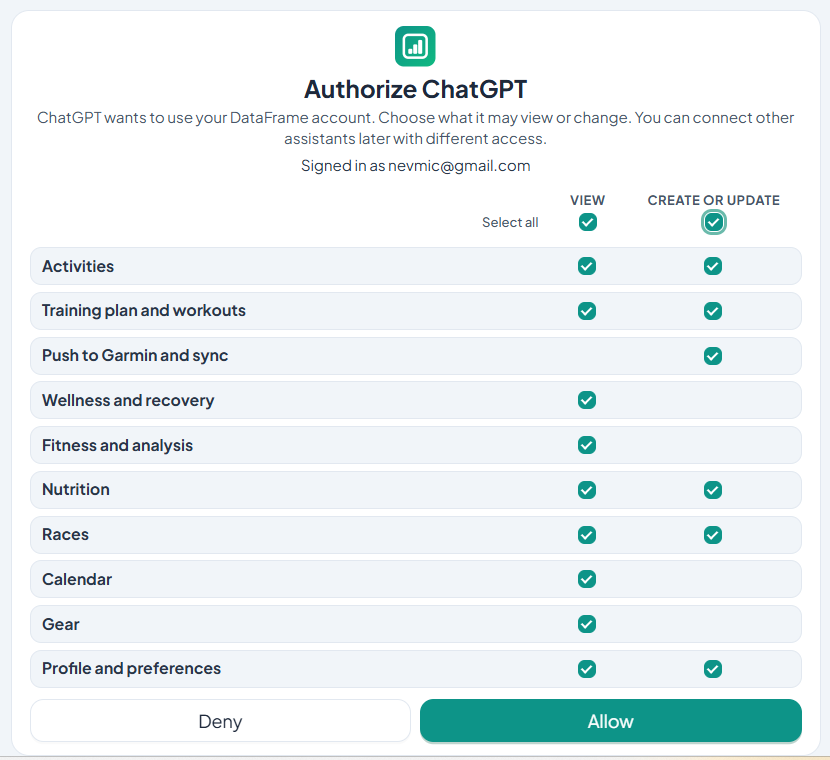
- Sign in on DataFrame - Choose Sign in with DataFrame.fit. Sign in with Google if needed, tick what ChatGPT may view or change, then Allow.
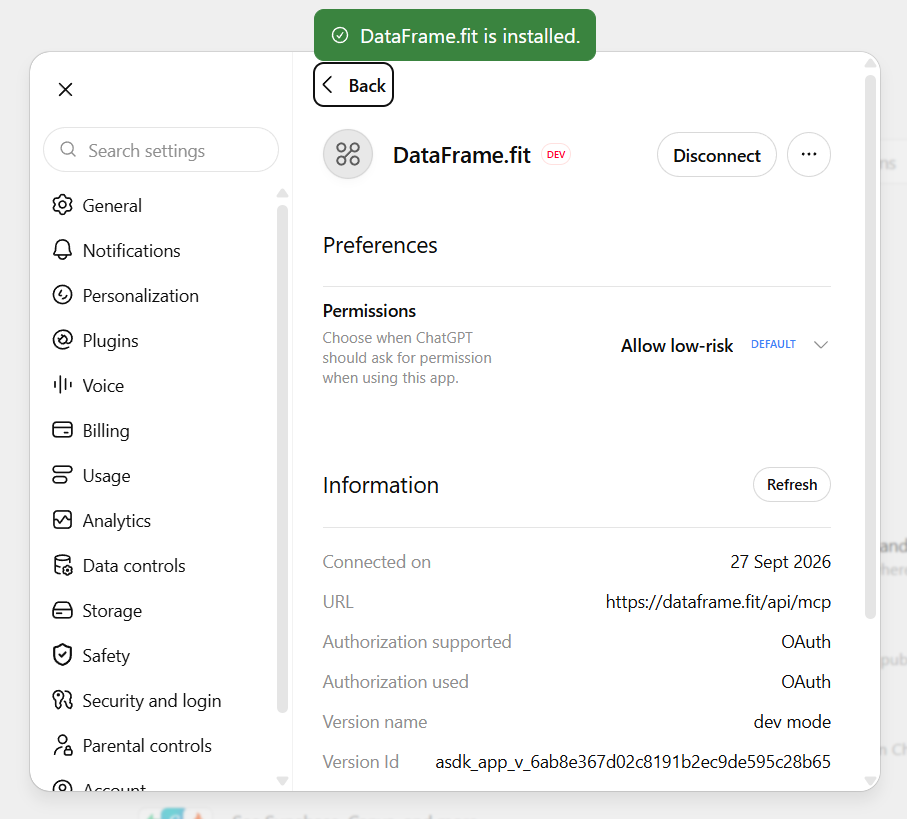
- Ask from chat - Start a normal ChatGPT chat and ask about a session, recovery, the plan, or nutrition. Manage the plugin under Settings → Plugins, or revoke under DataFrame Settings → Connections.
Related articles
Like what you see?
DataFrame.fit is free. Sign in with Google, link Garmin Connect, and use the same how-tos on your own training.
Continue with Google - See how DataFrame works
More about DataFrame.fit
- Home
- About
- Support
- How it works
- Screens
- Google Calendar
- AI / MCP Server
- ChatGPT
- Common questions
- vs Garmin
- vs Polar
- vs TrainingPeaks
- Garmin analytics
- All sports
- Privacy
- Terms
- Sign in
- llms.txt
© 2026 DataFrame™. All rights reserved.
This project is currently fully supported by Scope (www.scope.mt).
DataFrame™ is a non-commercial personal project. It is not affiliated with, endorsed by, or connected to Garmin, TrainingPeaks, Peaksware, or other fitness brands.