Support
Connect a coach Google Sheet
How to pull a coach Google Sheet into DataFrame.fit. Paste the Share link, set General access to Anyone with the link, pick the tab, and map Date and workout columns.
Why the sheet must be shared
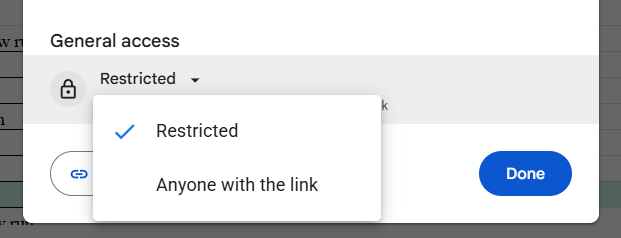
Google Sheets defaults to Restricted, so DataFrame.fit cannot read the plan until you change General access. Anyone with the link as Viewer is enough. You can also share the sheet with the DataFrame reader address as Viewer if you prefer not to use a public link.
Column mapping
Map Date to the column with the session date (for example 12-Aug or 2026-08-12). Map Workouts to the column with the session text your coach writes. Optional columns include weekday, activity or location, total time, and pace. Date and workouts must be different columns.
Several athletes on one sheet
If the spreadsheet holds more than one athlete, set first and last row for your block (1-based, inclusive). Choose how many days of future plan to import, and the plan year when dates look like 12-Aug.
Steps
- 1. Open the sheet Share menuIn Google Sheets tap Share.
- 2. Change General accessChange Restricted to Anyone with the link. Leave the role as Viewer, then tap Done.
- 3. Paste the Share link in DataFrame.fitSettings - Training Plan sources. Paste the Share link (the phone Share button is enough).
- 4. Pick the tab and columnsSelect the sheet with the plan, then map Date and the workout text columns.
- 5. Sync on Training PlanOpen Training Plan (under Nutrition, or More on a phone) and tap Sync. Your own sessions still go on Calendar.