Support
Coach athletes on DataFrame.fit
How the free DataFrame.fit coach portal works: become a coach, invite athletes, see who needs a look, read recovery against each athlete's own range, and assign templates and blocks to Calendar and the watch.
How coaching works
1. Become a coach
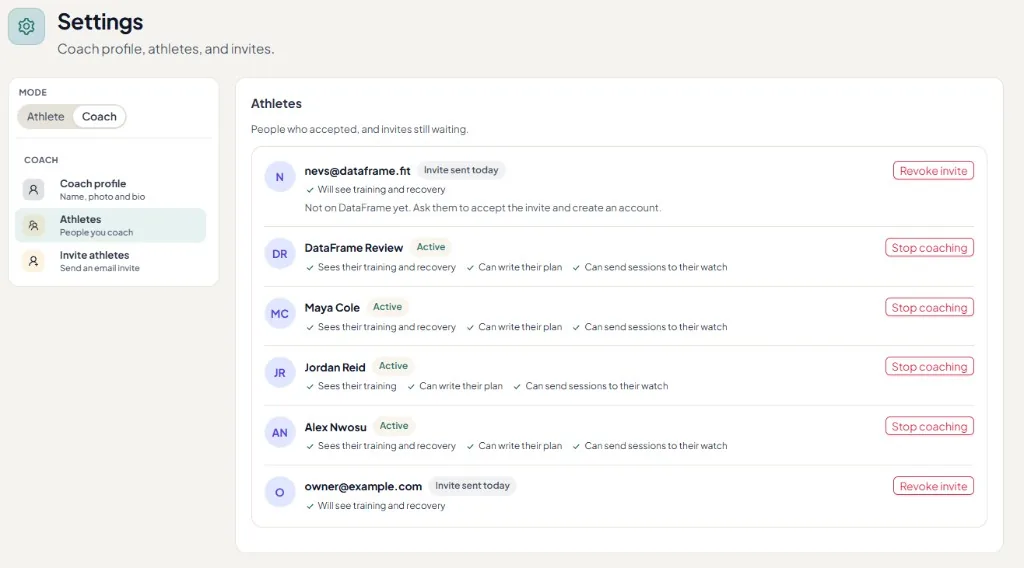
Open Settings, Coaching, and choose Become a coach. Pick the name athletes will see. A short bio and photo are optional. After you opt in, Settings has an Athlete / Coach switch. Coach mode holds Coach profile, Athletes, and Invite athletes. Your own training stays private and you keep your own Calendar.
2. Invite an athlete by email
In Coaching, choose Invite athlete and enter their email. They get a link and must sign in with the same Google address to accept. Until they do, Athletes shows Invite sent and that they are not on DataFrame yet. Revoke the invite from that list. Nothing is shared before they accept.
3. The athlete chooses what you can do
On accepting, the athlete picks what you can do. Athletes then shows the live permissions. They can switch any of them off, or remove you, under My coaches. A change applies on your next action.
- Write their plan - assign, change and delete sessions you assigned
- Send to watch - send assigned sessions to their watch (Garmin today)
- Recovery - sleep, resting heart rate, readiness and HRV against their own range
- Session check-ins - how a session felt, effort, and niggle tags
- Day notes, nutrition, weight and gear - read-only
4. Read the roster
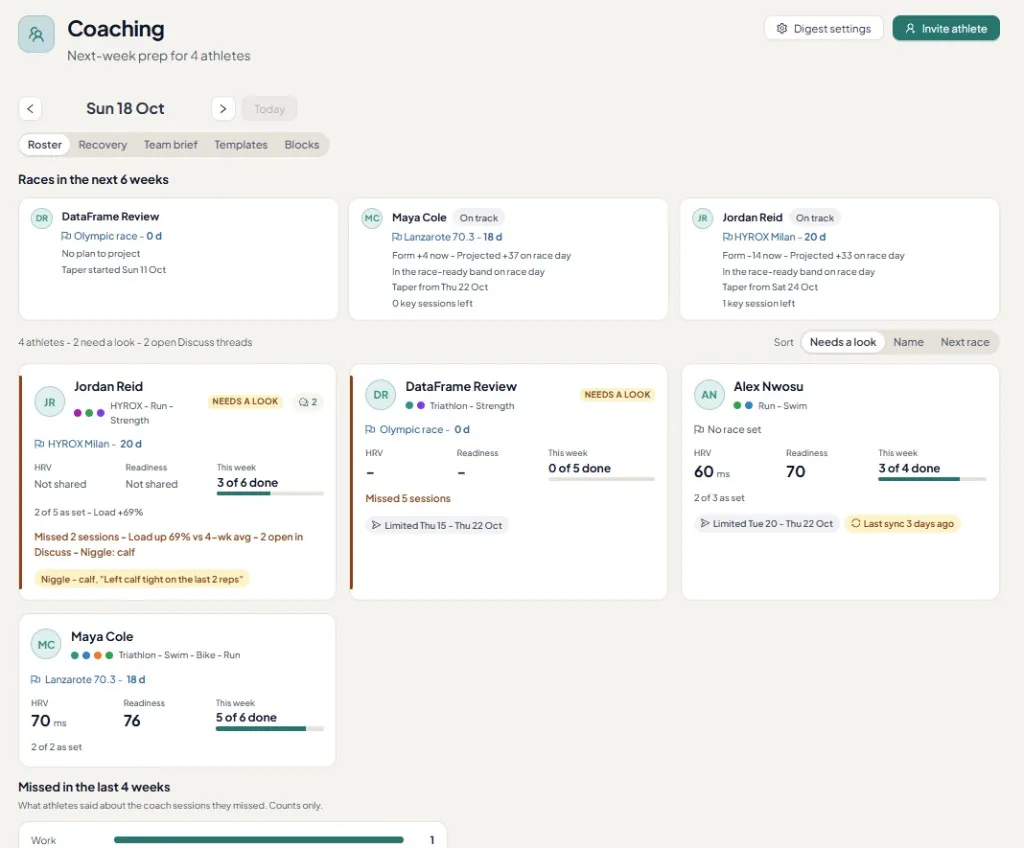
Roster is next-week prep: races in the next six weeks, this week done against planned, open Discuss threads, and who needs a look first. Sort by needs a look, name, or next race. Team brief is one or two lines per athlete for the day you pick.
5. Open an athlete
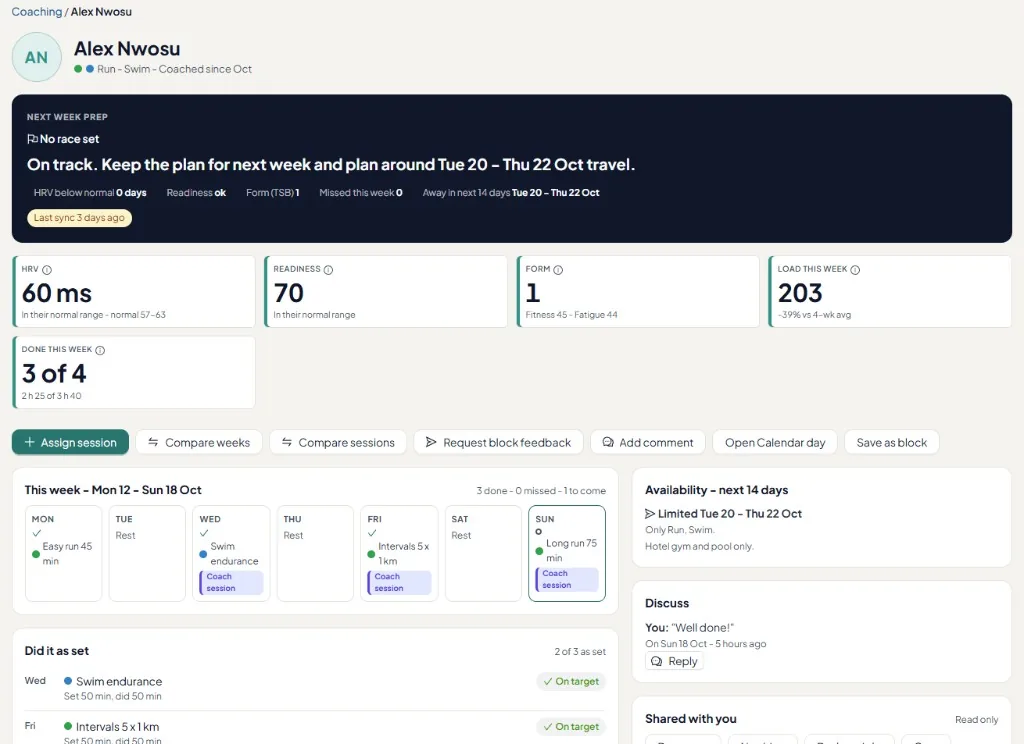
Open an athlete for HRV, readiness, form, load, their week, what was done as set, travel limits, and Discuss.
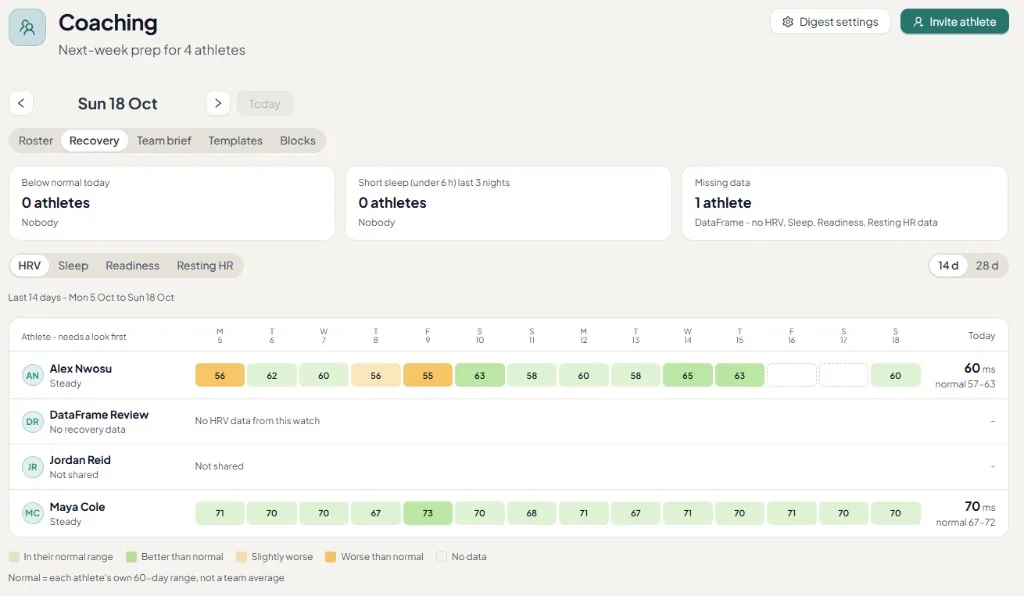
6. Read recovery
Recovery compares sleep, resting heart rate, readiness and HRV with each athlete's own normal range. Missing data and athletes who have not shared recovery stay marked.
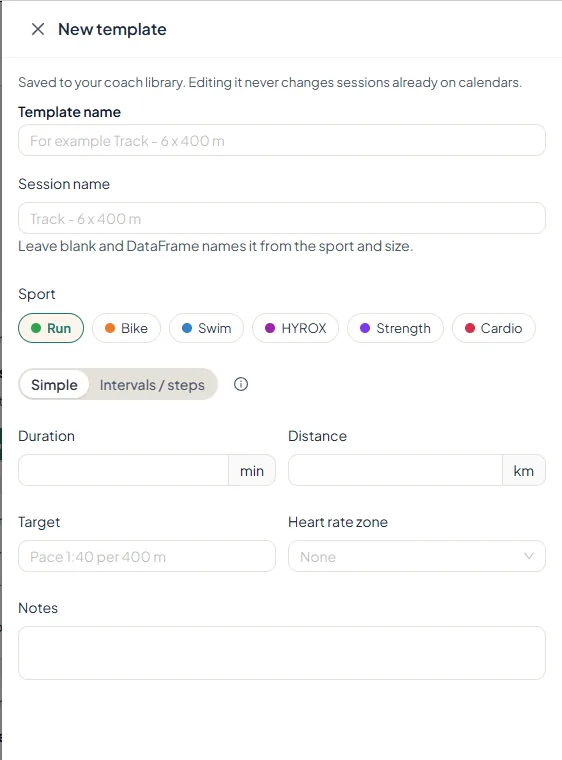
7. Save a template
Save a session as a template in your coach library: sport, simple or intervals, duration, distance, target and heart-rate zone. Editing a template never changes sessions already on calendars.
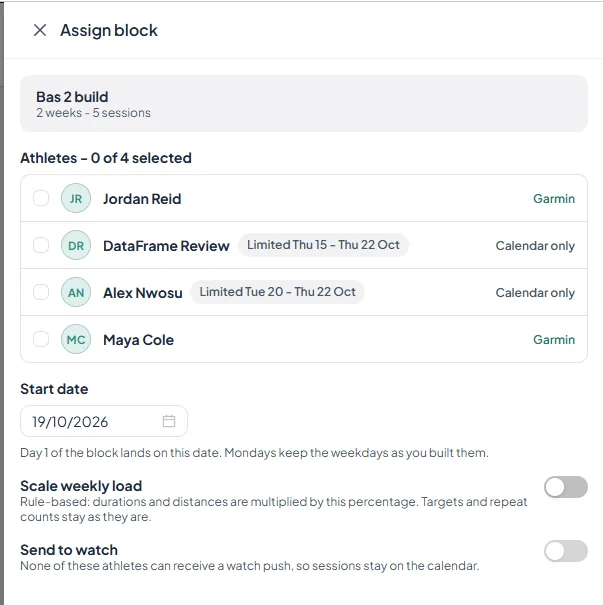
8. Assign a block
Save 1 to 4 weeks as a block, pick the athletes and a start date, and optionally scale the weekly load. Targets and repeat counts stay as built when you scale. Send to the watch only when that athlete allows it. Garmin can take a watch push. Others stay on the calendar. You can undo an assignment for a few seconds after you send it.
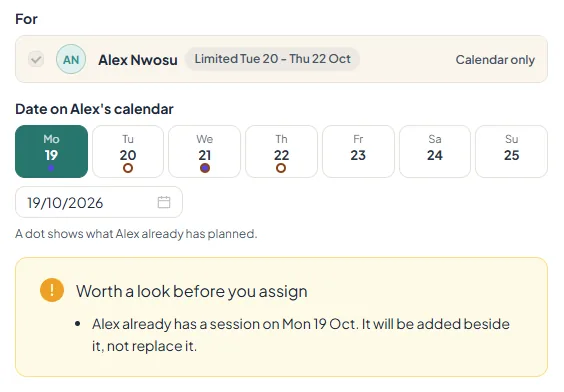
9. Check the day before you assign
A dot shows what the athlete already has planned. If you assign on a day that already has a session, DataFrame warns you: the new session is added beside it, not in its place. Travel and limited-sport days show on the assign screen too.
10. Review after they train
See each assigned session as done as set, done with changes, or missed. Read the check-ins athletes share, comment on a session or day, tag sessions to discuss, compare weeks, and ask for block feedback before you write the next block.
The coach portal at a glance
- Price
Free for coaches and athletes. No paid plan and no per-athlete fee. DataFrame.fit does not collect payments, so keep billing your athletes the way you do today.
- On their calendar
Assigned sessions appear on the athlete's Calendar and Training Plan, marked as from you, and in their Google Calendar if they use that sync. The athlete can amend a session and it keeps your mark. You can only change or delete future sessions you assigned yourself.
- Watches
When the athlete allows it, sessions are sent to their watch. Today that works for Garmin athletes, through their own Garmin connection and never yours. If the athlete uses Polar, the session lands on Calendar and Training Plan but is not sent to the watch, because plan push to Polar is not available yet. WHOOP recovery can sit on the athlete account alongside Garmin. Overnight scores prefer WHOOP when that night exists, otherwise Garmin.
- How fresh
The roster, team brief and Monday email read a daily snapshot that refreshes when the athlete syncs. They do not read each athlete's live data, so an athlete who has not synced shows an older snapshot.
- Monday email
A weekly Monday email summarises how your athletes did and links to each one. It is on by default. A daily alert for athletes who have been below their normal range for several days is opt-in. Both are set in your digest settings.
- Claude and ChatGPT
Connect an assistant to the DataFrame MCP server and work on linked athletes from chat: list the roster, check availability, assign a session or block as a preview first, then send it to the watch. The coaching permissions are off until you turn them on, and every request must name the athlete.
- TrainingPeaks
The coach portal is not a TrainingPeaks replacement. An athlete whose plan lives in TrainingPeaks can keep it: DataFrame.fit imports it on Training Plan beside what their watch recorded. Sessions you assign in DataFrame.fit land on Calendar. Coaches can also bring their own workout library across with an export file they make themselves, up to 200 templates, in Settings under Move my TrainingPeaks library. That button is optional and not approved by TrainingPeaks. Adding sessions by hand is always possible.
- Not included
Payment collection, white-label branding and a commercial exercise library are not part of the coach portal.